Wallet Libre
Turn any card into a pass.
The library card, the gym tag, the coffee shop’s loyalty card. Photograph the barcode once and carry it in Apple Wallet instead — where it offers itself on the lock screen as you walk through the door.

Why it exists
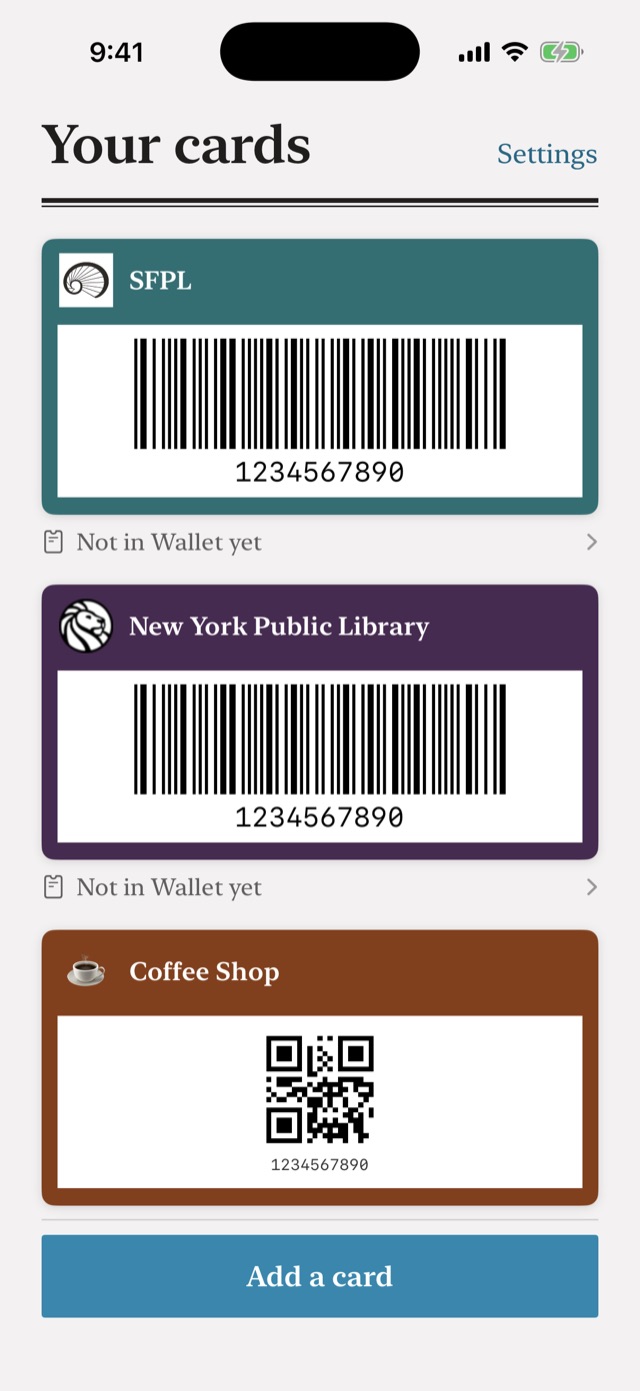
Most library cards use a barcode Apple Wallet can’t draw.
Wallet builds four kinds of barcode itself — QR, Aztec, PDF417 and Code 128. Library cards overwhelmingly use a fifth, Codabar, and it is not on that list. Which is why a library card is the one card that never quite made it into anybody’s wallet app.
Wallet Libre draws the bars itself, as artwork on the face of the pass, at the bar width a printed card actually uses — with the quiet margins on either side that a counter scanner needs, sized for the fact that Wallet crops the artwork on a narrow screen. It is the whole reason this app was written.
How it works
Three steps, and two of them are optional.
Photograph the barcode
The camera finds the card, reads the number off it, and shows you what it read so you can correct it. Or skip the camera and type the number.
Let it fill in the rest
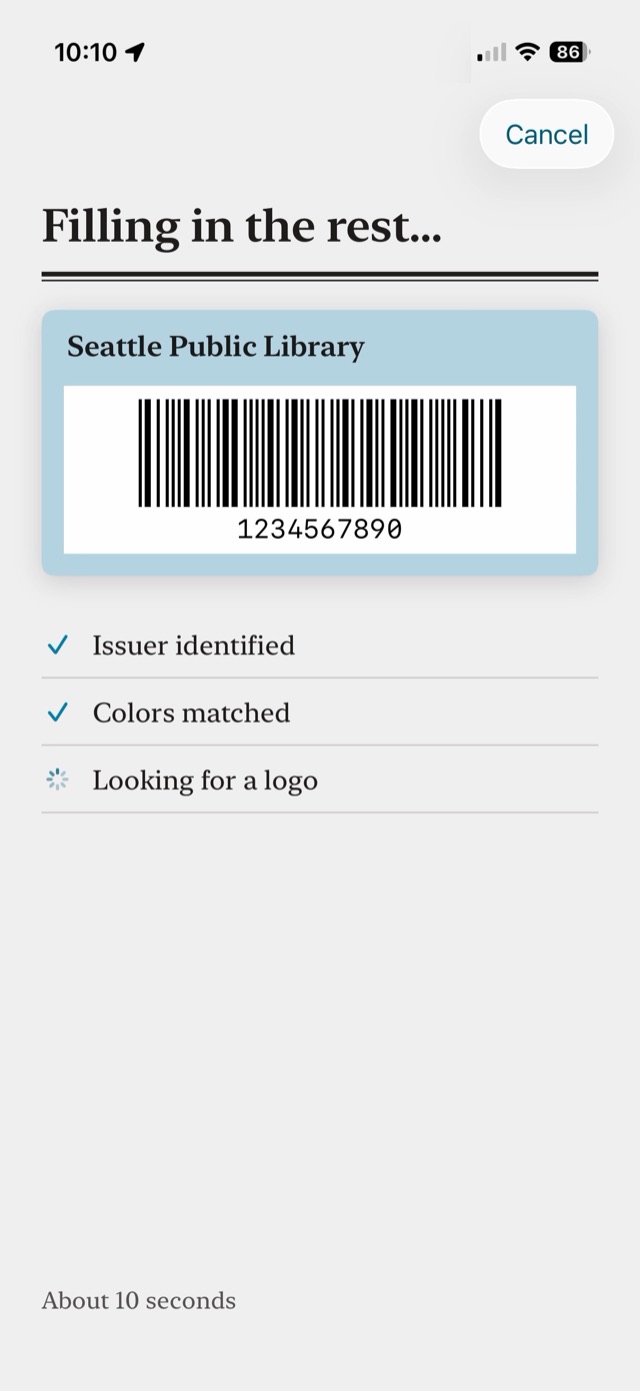
One tap sends the photo to be read once: the issuer’s name, colors picked out of the card itself, its logo, and the places it’s used. About ten seconds.
Add it to Wallet
The pass is signed and handed to Apple Wallet, where it behaves like any other pass you already have.
Auto‑fill
It reads the card so you don’t have to type it.
Point it at a card and it works out whose card it is, pulls the issuer’s real logo off their own website, and matches the pass to the colors on the plastic in your hand.
It is one of two buttons, on a screen that tells you the photo is about to be sent. Every field it fills can be typed in by hand instead, and the app works completely without it.
Locations
It knows where your library is.
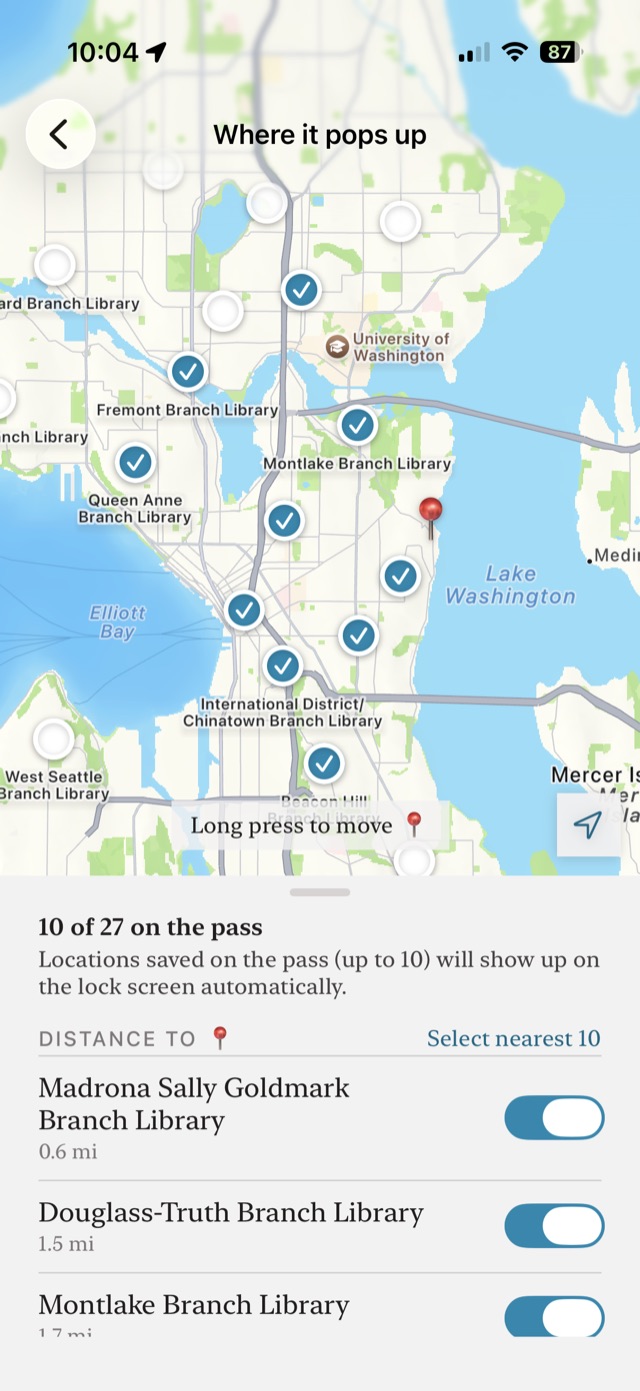
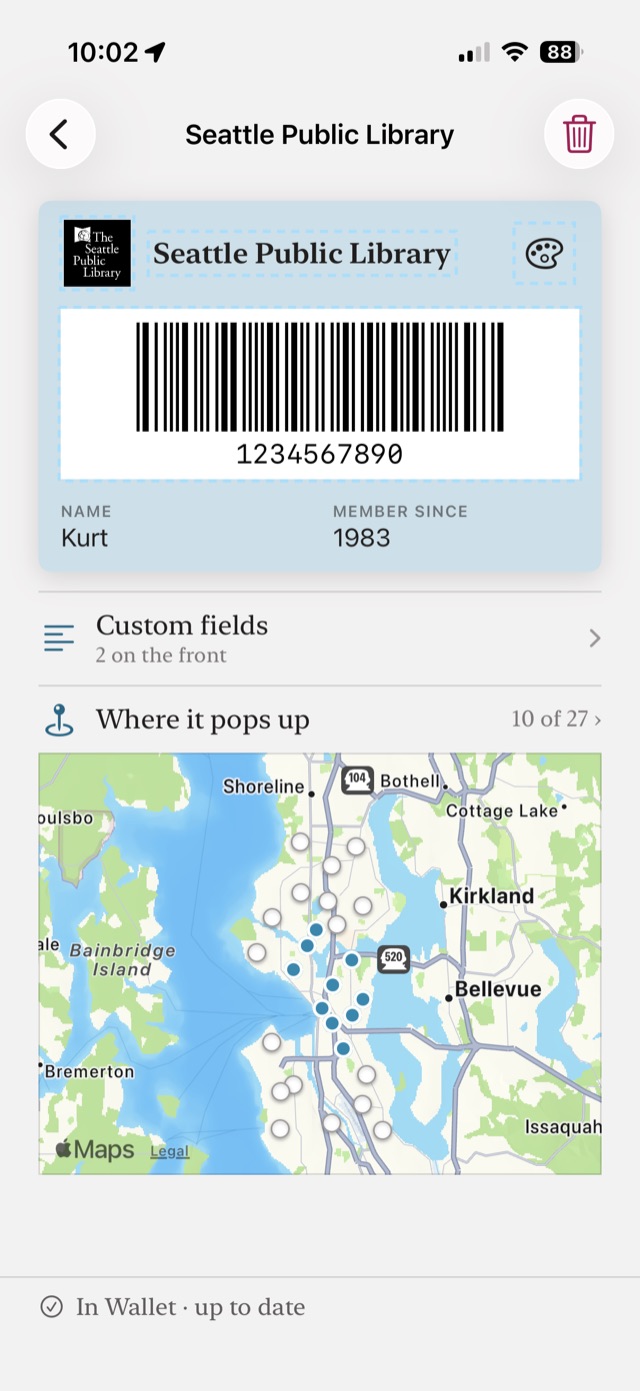
The app ships a directory of 9,095 US public library buildings across 1,557 systems, built from the IMLS Public Libraries Survey FY2024. Name your library and its branches are already there — no search, no waiting, and nothing about where you are ever leaves the phone to get them.
Pick up to ten, which is Apple’s limit per pass, and Wallet surfaces the card on your lock screen when you arrive at one. For anything that isn’t a US library there is a map search, and you can drop a place anywhere by hand.
The pass is yours
Edit anything, before or after.
Change the title, repaint the colors, swap the logo for a letter or an emoji, and add the fields that are actually printed on your card — a name, a member-since year, an expiry.
Change your mind later and the card in the app tells you the pass in Wallet needs updating. Rearrange the shelf by dragging a card; that doesn’t touch the passes at all.
Privacy
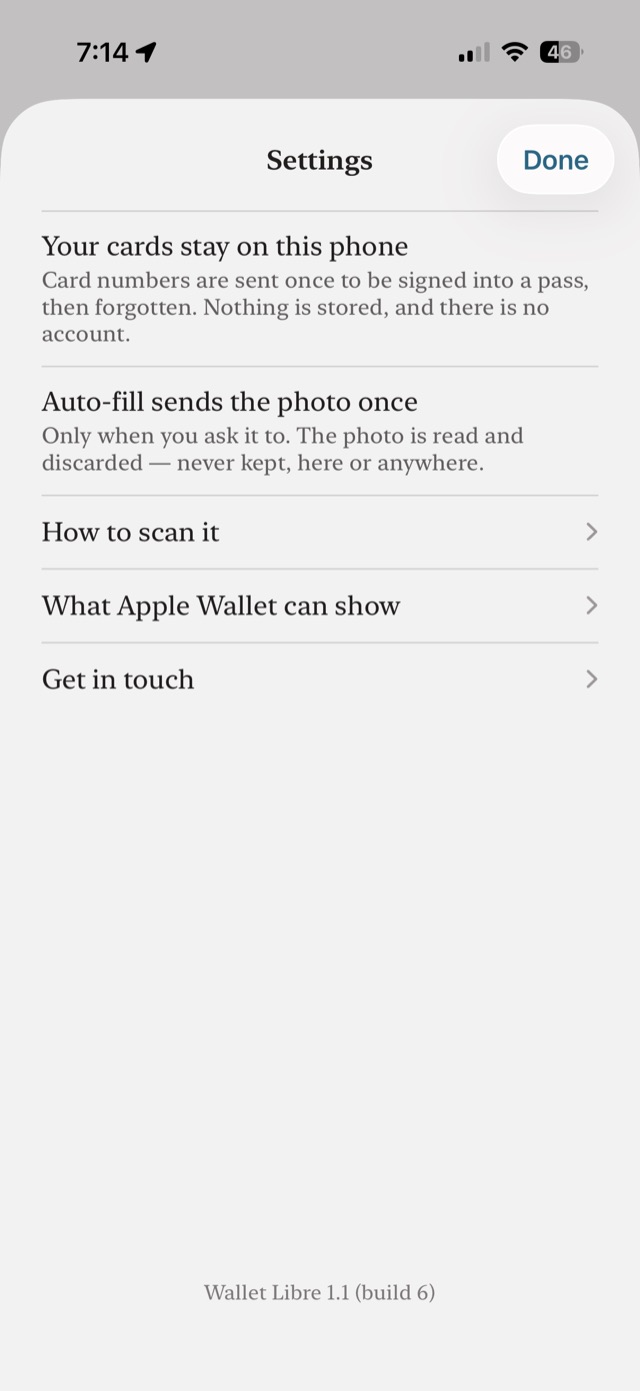
There is no account, and nothing to log in to.
Your cards live on your iPhone. There is no sign-up, no ad network and no third-party analytics anywhere in the app.
Apple requires every pass to be signed by a registered developer certificate, which cannot ship inside an app — so the card’s details go to a signing server, which builds the pass, signs it, returns it, and deletes its working copy before the response is sent. Nothing is written to a database. Nothing is written to the logs.
Read the full privacy policy — it is written to be checkable line by line against what the code does.
In Wallet
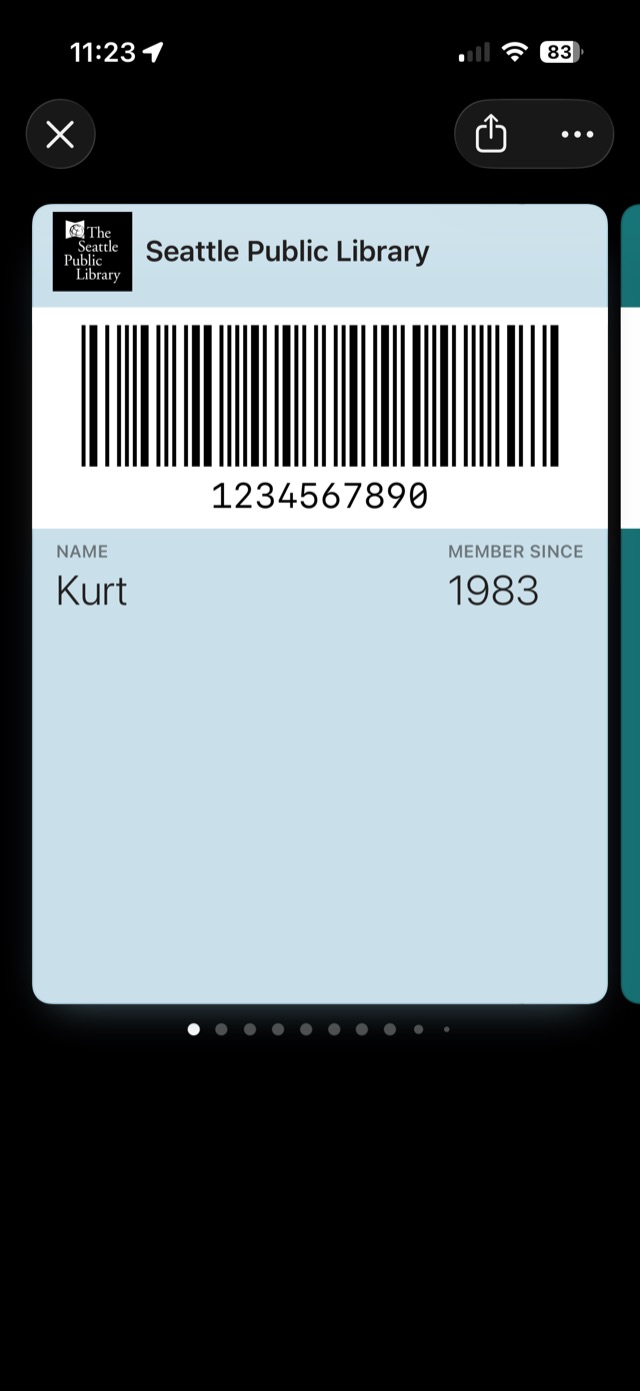
Then it is just a pass.
Once it is added, Wallet Libre is out of the way. The card sits in Apple Wallet with everything else, comes up with a double-click, and appears on the lock screen when you reach one of its places.
Details
- Price
- Free. No in-app purchases, no subscription, no ads.
- Requires
- iOS 17 or later · iPhone, iPad, Mac (M1 or later) and Apple Vision Pro
- Barcodes
- Codabar, QR, Aztec, PDF417, Code 128 — or a number kept as a field with no barcode at all
- Locations
- Up to 10 per pass, which is Apple Wallet’s own limit
- Account
- None. There is nothing to sign in to.
- Size
- About 6 MB
Questions worth asking first
Will the pass actually scan at the counter?
Usually, and the bars are drawn at the width a printed card uses to give it the best chance. But the scanner is not ours: some older units at a desk read no phone screen at all — hold a photograph of your physical card up to one and it fails too. Worth trying once before you leave the plastic at home.
Does it work outside the US?
The app does. The shipped library directory is US public libraries only, so elsewhere the places come from a map search or you add them by hand — everything else is the same.
Do I have to use the AI fill?
No. It is one of two buttons and the app is complete without it: type the name, pick the colors, choose the places. It is the only step that sends a photo anywhere, and it says so on the screen where you choose it.
What happens to the card I photographed?
The photo is dropped once the pass is added. Card details reach the signing server, are signed into a pass, and are deleted before the response is sent — never stored, never logged.
Leave the plastic at home.